Navigating Browsertrix
Navigate Your Org
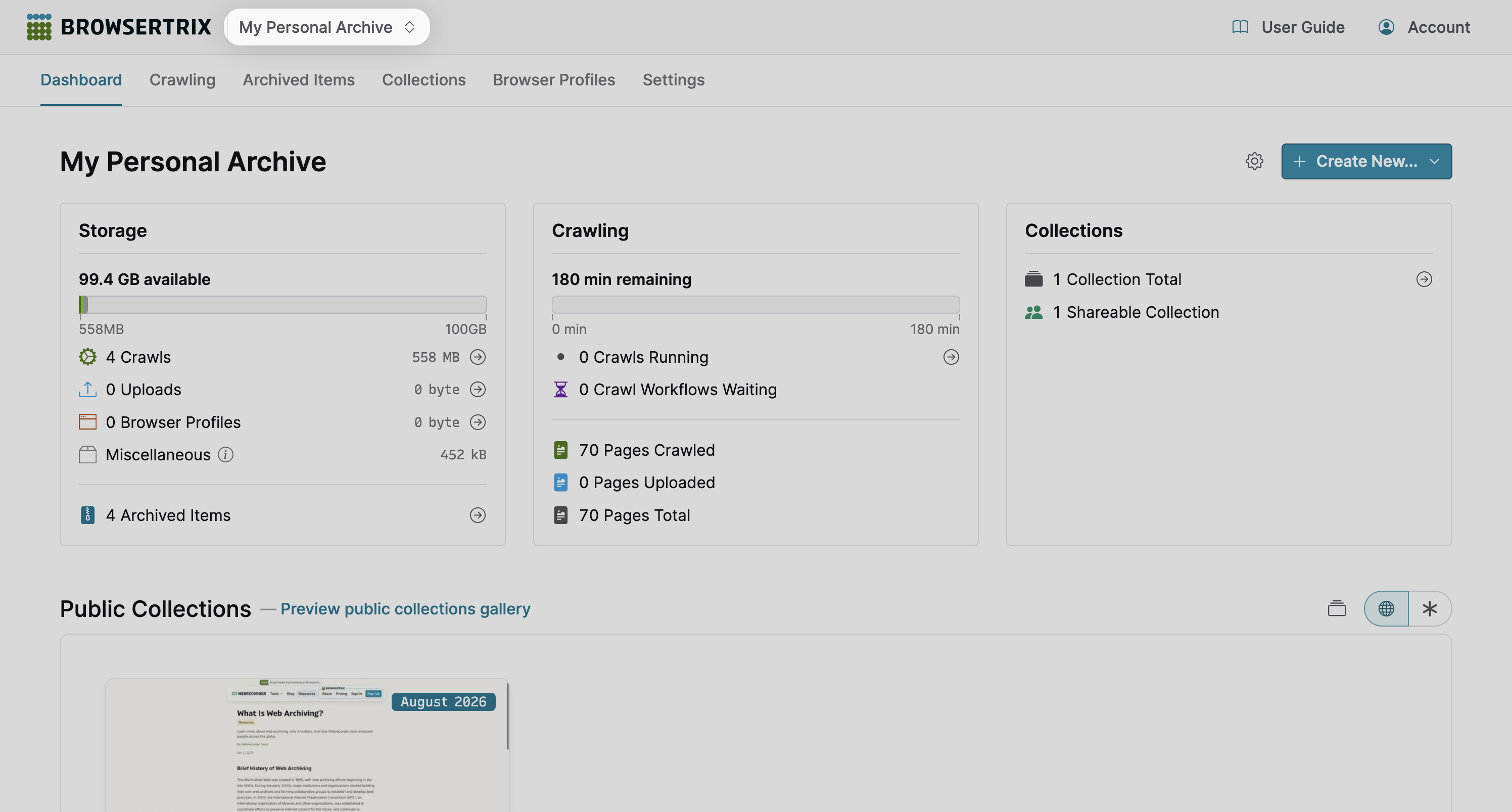
You can find links to navigate your org near the top of each page, directly below the top-level navigation bar with the Browsertrix logo.
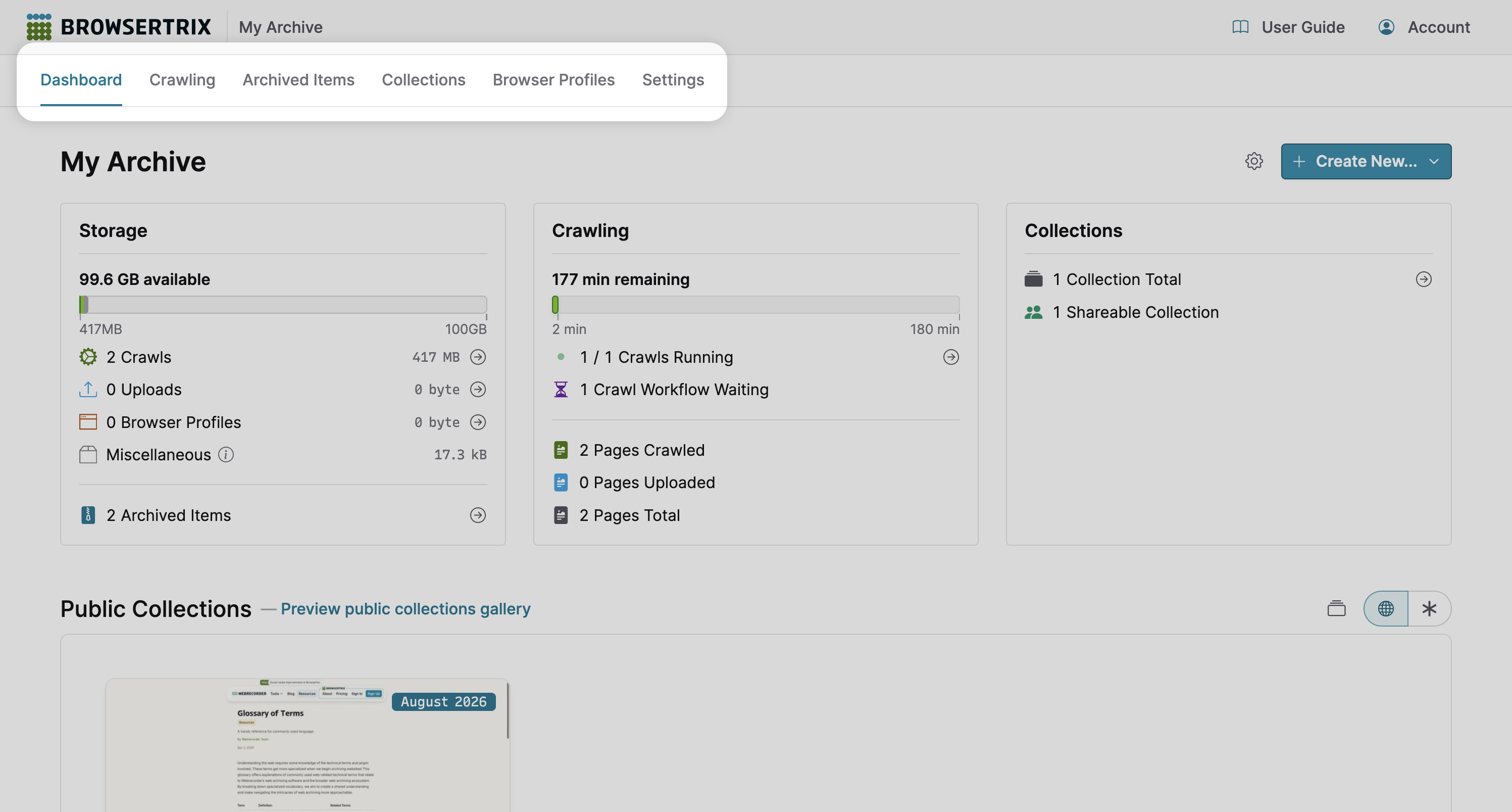
Org Pages
- Dashboard: Track org usage statistics and public collections.
- Crawling: Manage crawl workflows, run crawls, and view active crawls.
- Archived Items: Manage, import, and search for archived items.
- Collections: Manage collections.
- Browser Profiles: Manage browser profiles.
- Settings: Edit org information, manage billing and subscription plan, and add or remove org members.
Why don‘t I see the “Settings” link?
The link to Settings will not be available if you were invited to join an existing org and were not given permission to administrate the org. Contact your org administrator if this appears to be a mistake.
Navigate to the User Guide
You can access guides from any org page by tapping the User Guide button at the top of the page. The user guide will remain open as you navigate between org pages.
By default, the user guide will open to the side so that you can use Browsertrix and view guides at the same time. To open the user guide in a new tab in your browser, activate the User Guide menu and select the Open in New Tab option.
Navigate to Active Crawls
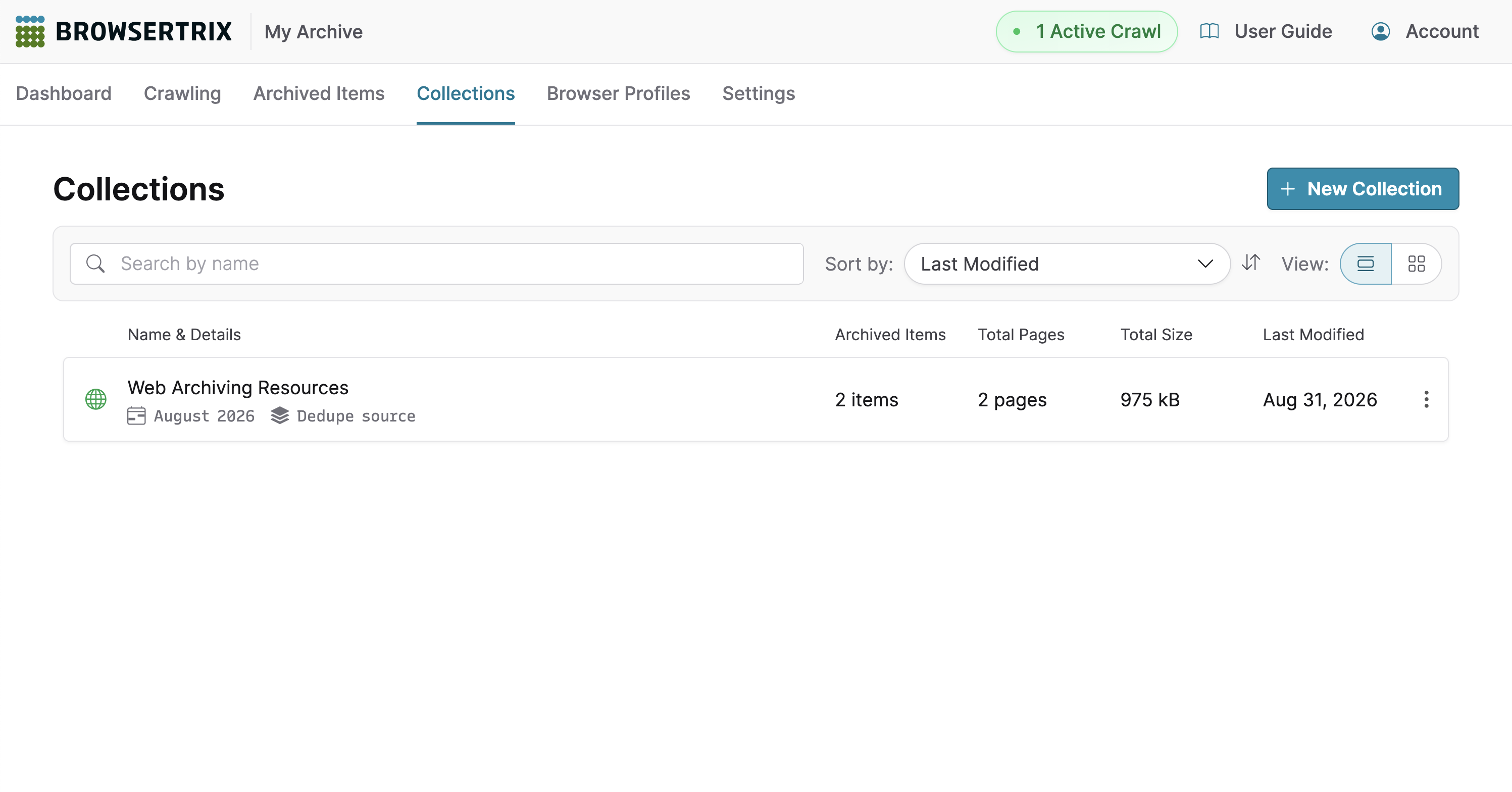
If any crawls in your org are active—i.e. visiting pages, waiting to visit pages, or temporarily paused—a link indicating the total number of active crawl runs will appear at the top of every page, next to the User Guide button.
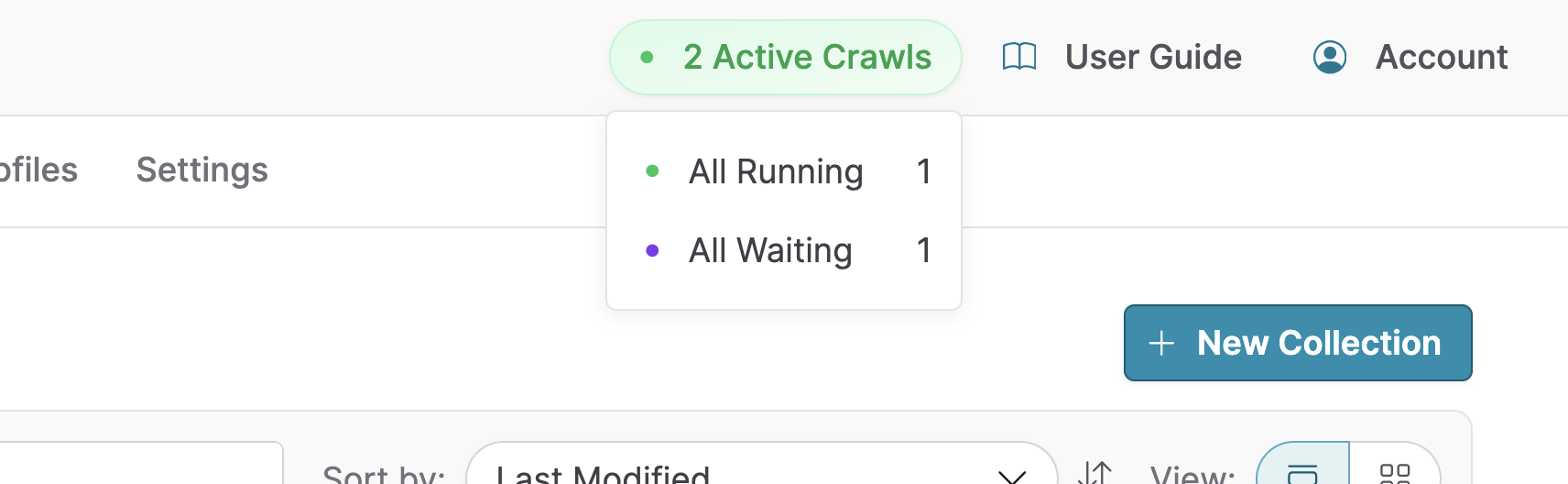
Hover over or focus on the total number of crawls to view a breakdown of running, waiting, or paused crawl runs.
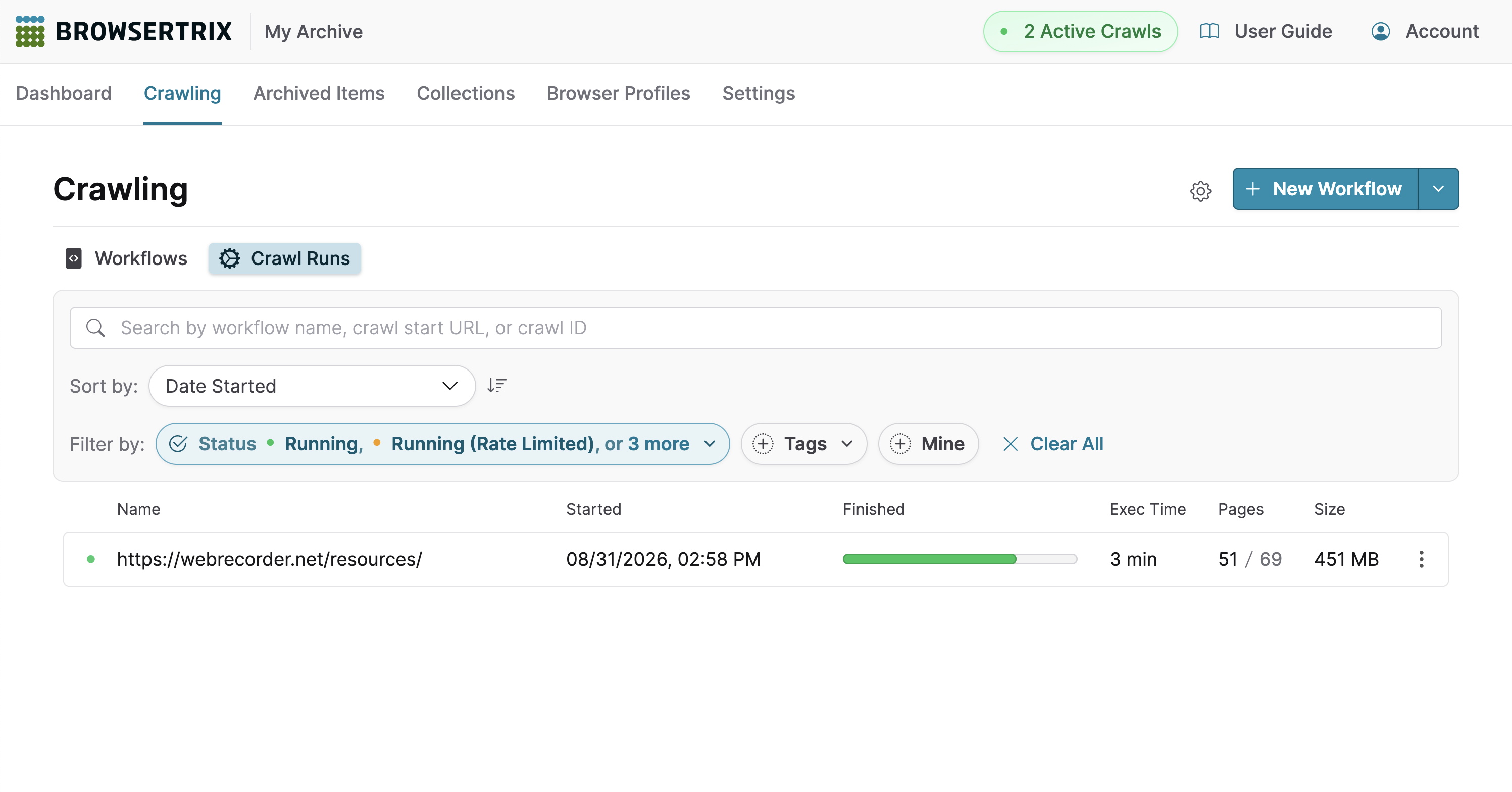
Tapping the total number or selecting a status will take you to a view of the crawl runs filtered by that status and its sub-statuses.
Navigate to Another Org
If you belong to multiple orgs, a dropdown indicator will appear next to the org name that appears at the top of every page.
You can view all the orgs you belong to by tapping the current org’s name.
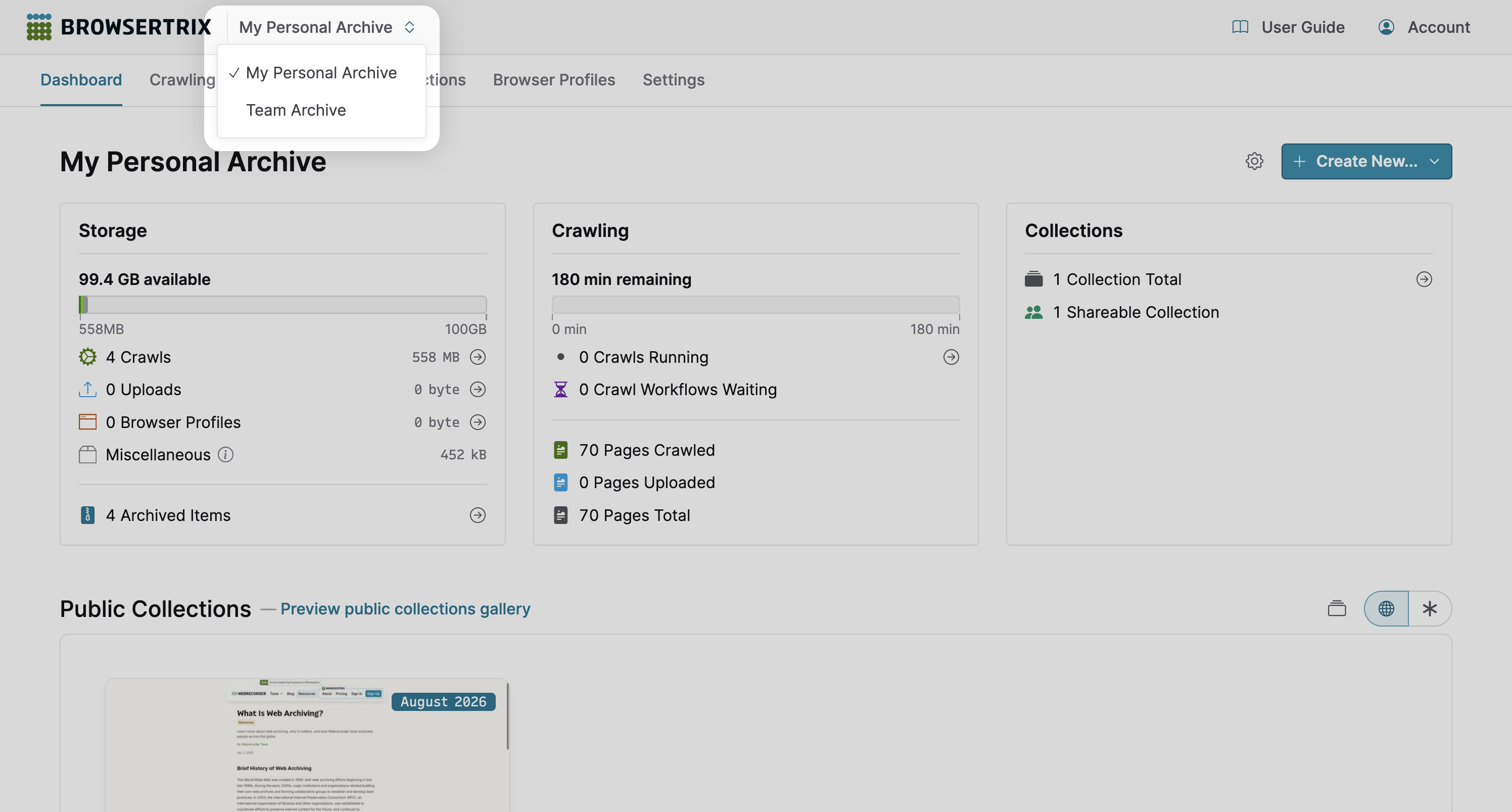
To switch to another org, select the org name from the dropdown.